Never be the one who joins late
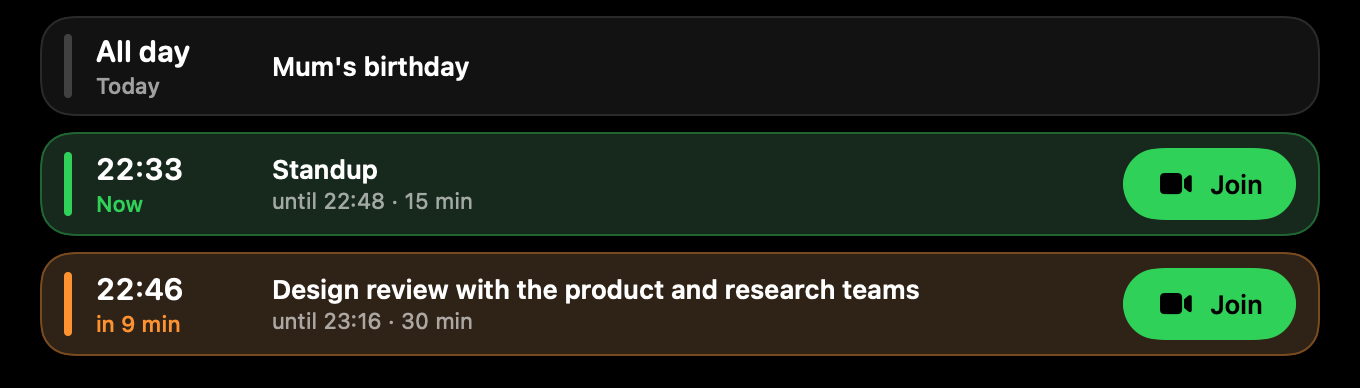
Your next 24 hours from every calendar macOS knows about. Ten minutes before a call the notch counts down. At five, a Join button appears, and Check camera opens a mirror so you can fix your hair first.
 Keep awake
Onfor 1 h
This is a demo. Hover or tap the notch to open it, then try the tabs.
Brim turns the notch into a live strip for your next call, your Claude usage, a timer, the song that's playing and a small dog named Pip. Hover to open the panel. Free, and your data stays on your Mac.
Install with one command
curl -fsSL https://brim-ehw.pages.dev/install.sh | sh
Paste it into Terminal. It downloads Brim, checks the checksum and puts it in Applications. Read the script first.
Free. Requires macOS 15 or later and an Apple Silicon Mac. The DMG opens after one extra step: see how.
Small things you check all day, each one a hover away. Turn any of them off in Settings.
Your next 24 hours from every calendar macOS knows about. Ten minutes before a call the notch counts down. At five, a Join button appears, and Check camera opens a mirror so you can fix your hair first.
Pin up to two modules and their numbers sit beside the notch, even when it's closed.
The Home tab lays out cards for your next meeting, the timer, Now Playing, Claude usage and quick controls. Pick and order them yourself. The panel at the top of this page is what it looks like.
Back to the demoArtwork, title and controls for Music, Spotify and your browser. A waveform in the ear tells you something is playing.

Keep your Mac awake for 15 minutes or forever. Lock the keyboard to wipe it, then hold the lock to undo. Mute the mic system-wide and see when the camera or mic is in use.
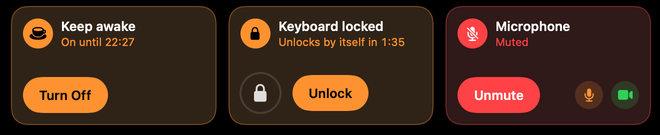
Put mute, keep awake or record in the ears. One click, and the panel stays shut.
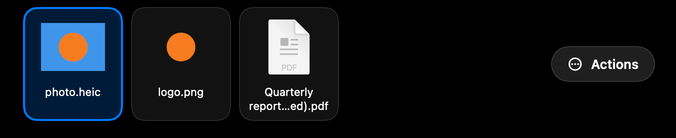
Drag a file to the notch and it waits there. Convert HEIC to JPEG, resize, remove a background, turn a movie into MP4 or AirDrop it. The original is never touched.
Screen and mic, or mic only. A red dot and a running clock sit in the ear until you click stop. The file lands in Movies, ready to paste.
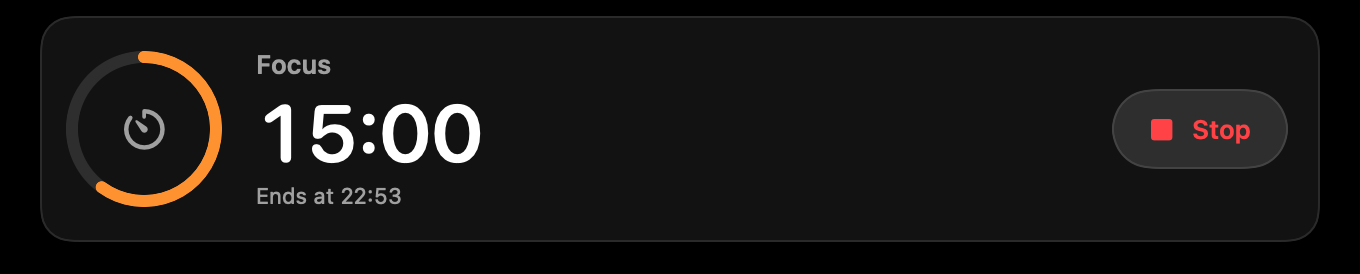
25 minutes of focus, then a break. A ring in the ear empties as time runs out.
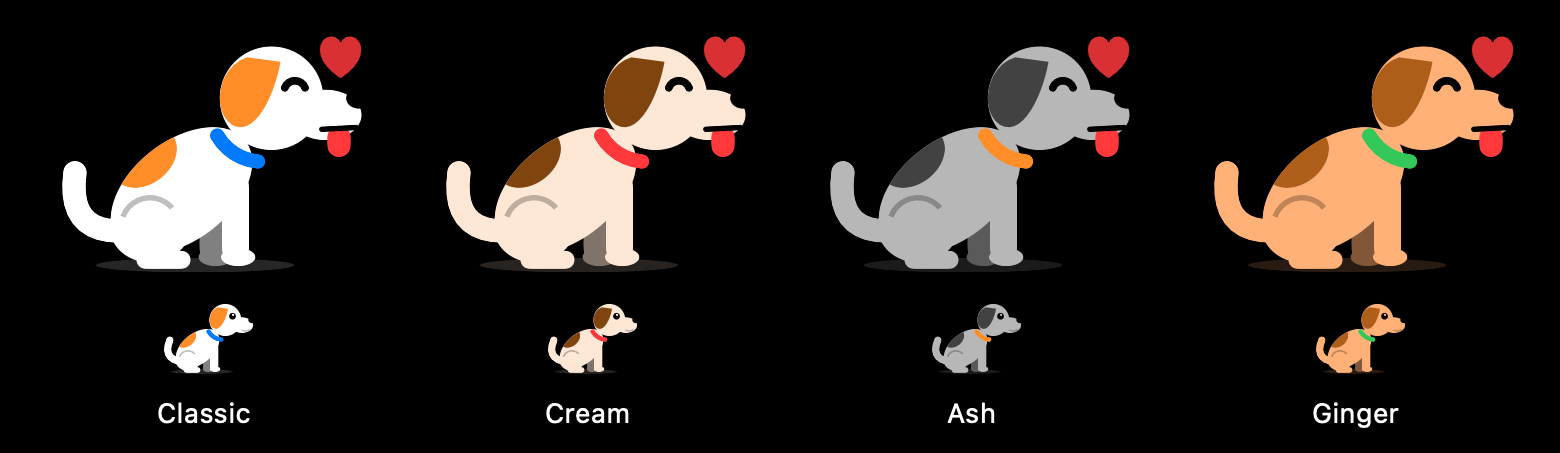
Pip lives in the ear. Pip naps when you're away, jumps when Claude needs you, wags when a task finishes and pants when you're close to your limit. Click to pet.
Put your notch to work.
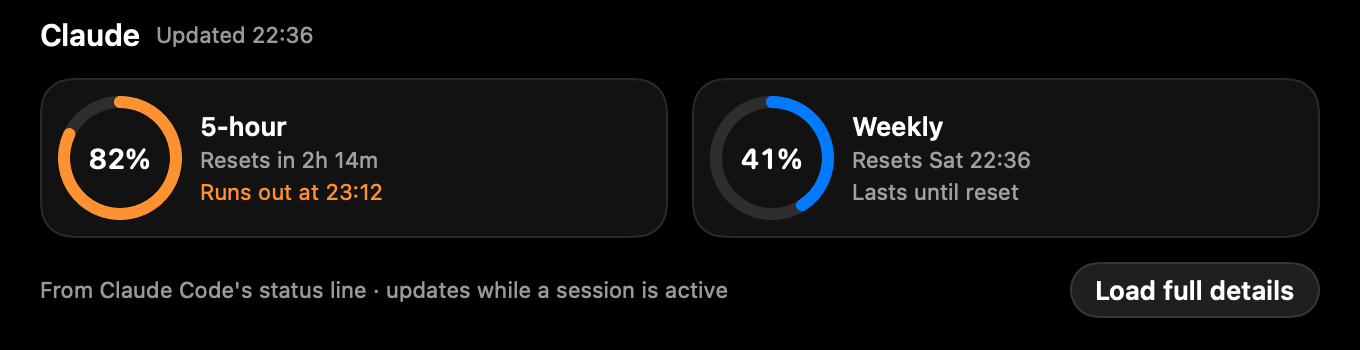
Download for macOSBrim reads your Claude limits and your agent sessions and puts them where your eyes already are.
# wire up the hooks (backs up your settings first)
$ brim hooks install claude-code

# get a ping when a long command finishes
$ brim run -- swift test

# from your own scripts
$ brim notify --title "Deploy done"
$ brim record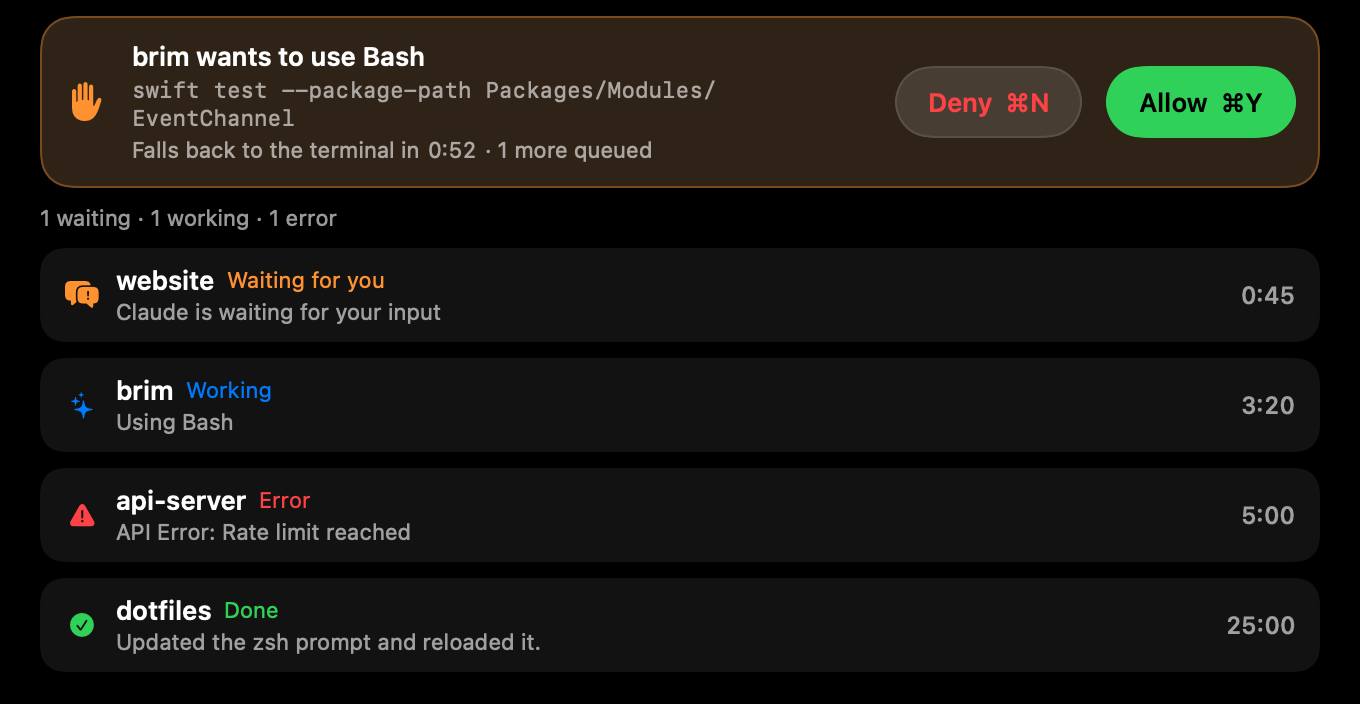
No quotes, no star ratings. These are measurements from Brim's performance audit on a 14-inch MacBook Pro, idle with the panel closed.
No account, no sign-in, no ads. Brim sends one small anonymous ping a day so its developer knows people use it. That's all it sends about you, and you can turn it off.
| Permission | Used for |
|---|---|
| Calendars | Your next meetings and the Join button |
| Camera | The mirror before a call |
| Microphone, Screen Recording | The screen recorder |
| Accessibility | Keyboard lock |
| Bluetooth | AirPods battery |
| Automation | Only if the normal Now Playing source fails |
| Claude Code login | Claude usage |
Yes. On any screen without a notch, including external displays, Brim shows a small floating pill at the top center instead.
Your data, no. Brim sends one anonymous ping a day (a random install id, the Brim version and the macOS version) so its developer can see how many people use it. Turn it off in Settings → Modules → Anonymous usage ping. The only other request is Claude usage, which goes straight from your Mac to Anthropic, and only if you use that module.
Brim is free and made by one developer without a paid Apple developer account, so Apple hasn't notarized it. It is signed with Brim's own certificate, which keeps your permissions across updates. The one-command install doesn't hit this at all. For the DMG, on macOS 15 Sequoia and macOS 26 Tahoe: 1. Drag Brim to Applications and open it; when macOS says "Brim" Not Opened, click Done. 2. Open System Settings → Privacy & Security. 3. Scroll down to Security, find "Brim" was blocked to protect your Mac, and click Open Anyway. 4. Enter your password or use Touch ID, then click Open Anyway once more. You only do this once. (Control-clicking Open no longer skips the check on macOS 15 and later.)
It doesn't ask up front. Each permission is requested the first time you use the feature that needs it. Keep a module off and it never asks.
No. When closed, Brim only takes clicks on the notch and its two ears. Everything else passes through.
Very little. Measured idle with the panel closed: 0.00% CPU and no wakeups.
No. Calendar, Now Playing, the timer, the shelf, the recorder, the controls and Pip work without it.
No. macOS has no public way to do that, so Brim doesn't try.
No. Brim needs Apple Silicon and macOS 15 or later.
Settings → Modules → Anonymous usage ping → Uninstall Brim. It shows what it will remove (Brim's Claude Code hooks and status line, the brim command link, open at login, its settings), moves Brim to the Trash and opens a short, optional feedback page.
Yes. No trial, no account, no in-app purchases.
macOS 15 or later, Apple Silicon.